Affinity by Canva is the best overall free Photoshop alternative for Windows, Mac and iPad, Photopea is best for editing PSD files in any browser, and GIMP is the best truly free option, especially for Linux. None of these tools fully replaces Photoshop’s smart objects or Generative Fill, so the right choice depends on your main task and platform.
Adobe Photoshop’s G2 list price is $22.99/month, which comes to about $276 a year. “Expensive” is its most-cited G2 complaint, with 92 mentions (G2, November 2026). Cancelling Creative Cloud brings its own risks: PSD files that don’t carry over cleanly, “free” tools with catches, and editors that don’t run on your platform.
PlugRoute has no affiliate relationships with any company listed; rankings are determined entirely by research data and objective evaluation criteria.
“GIMP is not a 1:1 recreation of Photoshop. It does not need to have every feature to be an alternative.” (u/drunkondata, r/opensource (Reddit, accessed November 2026))
Takeaway: A Photoshop alternative only has to cover the features your work actually uses, so pick the tool that fits your main task.
Why Are People Looking for Adobe Photoshop Alternatives?
Most people look for Adobe Photoshop alternatives because of cost and complexity, not because the product is weak. Adobe Photoshop holds a 4.6/5 G2 rating from 13,449 reviews, and 97.5% of those reviews give 4 or 5 stars (G2, November 2026). Adobe Photoshop’s five most-cited G2 complaints are about price, learning curve, speed and the subscription model.
Adobe Photoshop’s most-cited G2 cons are these (G2, November 2026):
- Expensive: 92 reviews say Adobe Photoshop costs too much.
- Learning Curve: 87 reviews describe Adobe Photoshop as hard to learn.
- Slow Performance: 54 reviews report that Adobe Photoshop lags.
- Subscription Requirement: 22 reviews object to Adobe Photoshop being subscription-only.
- Limited Features: 20 reviews say Adobe Photoshop lacks features they need.
Adobe Photoshop’s G2 reviewers also ask for these improvements (G2, November 2026):
- Adobe Photoshop reviewers want simpler navigation and onboarding for new users.
- Adobe Photoshop reviewers want fewer lags and crashes with large files and many layers.
- Adobe Photoshop reviewers want AI edits that follow prompts more consistently and blend in more naturally.
- Adobe Photoshop reviewers want more precise selection and masking of intricate edges.
Adobe Photoshop’s prices for comparison:
- Adobe Photoshop for Individuals is $22.99/month, Photoshop for Teams is $37.99 and the Photography plan is $19.99 (G2 list prices, November 2026; prices may change).
- Adobe’s own plans page lists Creative Cloud Pro at $69.99/month at the regular price (Adobe, accessed November 2026).
What Are the 4 Categories of Photoshop Alternative Tools?
Photoshop alternatives fall into four categories:
- Full Layer Editors reproduce Photoshop’s layered editing.
- AI Consumer Editors lead with quick AI retouching.
- RAW & Tethering Specialists process camera files and run studio capture.
- Template Design Platforms build graphics from templates.
If you compare tools from different categories as if they did the same job, you can easily buy the wrong one.
- Full Layer Editor: A Full Layer Editor reproduces Photoshop’s layer-based raster editing, including masks and compositing. Affinity by Canva, Photopea and GIMP are in this category.
- AI Consumer Editor: An AI Consumer Editor leads with easy AI retouching and quick edits rather than full Photoshop parity. CyberLink PhotoDirector and Pixlr are in this category.
- RAW & Tethering Specialist: A RAW & Tethering Specialist handles professional RAW development and studio capture. It works alongside a layer editor rather than replacing one. Capture One Pro is in this category.
- Template Design Platform: A Template Design Platform is built around templates and drag-and-drop layouts rather than pixel-level photo editing. Canva is in this category.
How Do the Top Photoshop Alternatives Compare at a Glance?
Only three ranked tools come close to Photoshop’s layered editing: Affinity by Canva, Photopea and GIMP. CyberLink PhotoDirector and Pixlr focus on fast AI edits. Capture One Pro specializes in RAW processing and tethering, and Canva specializes in templates. Adobe Photoshop appears in the top row as the unranked baseline.
| Rank | Company | Category | Best For | One-Line Summary | Key Capabilities | Primary Strength | Key Limitation |
|---|---|---|---|---|---|---|---|
| N/A | Adobe Photoshop (product being replaced) | Baseline | Professional retouching and compositing | Adobe Photoshop is the subscription-based standard for layered image editing, rated 4.6/5 from 13,449 G2 reviews (G2, November 2026). | Layers, smart objects, Generative Fill, CMYK | Deepest feature set | $22.99/month G2 list price |
| 1 | Affinity by Canva | Full Layer Editor | Free layered editing on Windows, Mac and iPad | Affinity by Canva is the closest free match to Photoshop’s layered, non-destructive editing in 2026 for Windows, Mac and iPad users who accept a required Canva account. | Adjustment layers, live filters, RAW, vector and layout | Pro-grade editing at $0 | Smart objects may flatten; no Linux |
| 2 | Photopea | Full Layer Editor | PSD editing in any browser | Photopea is the most PSD-faithful Photoshop alternative in this ranking for 2026. It is a free browser-based editor that opens and saves layered PSD files on any operating system. | Native PSD, masks, adjustment layers, local processing | PSD is its native format | Ads on free tier; single developer |
| 3 | GIMP | Full Layer Editor | Linux users and zero-cost editing | GIMP is the only ranked Photoshop alternative in 2026 that is completely free with no account, ads or paywall. It is also the strongest native option for Linux users. | Layers, masks, non-destructive filters, plug-ins | Free with no strings | No adjustment layers or CMYK mode |
| 4 | CyberLink PhotoDirector | AI Consumer Editor | One-time purchase with AI | CyberLink PhotoDirector is an affordable, AI-heavy desktop photo editor in 2026 for hobbyists who want a one-time purchase. It does not suit PSD-based workflows. | AI retouching, RAW, layers, organizer | $119.99 one-time list price | Saves in proprietary PHI, not PSD |
| 5 | Pixlr | AI Consumer Editor | Cheap quick AI edits in a browser | Pixlr is a low-cost browser photo editor in 2026 for quick AI edits and background removal. It does not replace Photoshop for professional or PSD-based work. | Layered browser editor, AI credits, templates | Lowest paid entry price | No RAW; partial PSD support |
| 6 | Capture One Pro | RAW & Tethering Specialist | Studio tethering and RAW color | Capture One Pro is the only ranked tool with professional tethered shooting in 2026, and it competes with Lightroom more than with Photoshop. | Tethering, RAW color, AI masks, PSD mask export | Only pro tethering ranked | No compositing; highest subscription cost |
| 7 | Canva | Template Design Platform | Social graphics from templates | Canva had more than 265 million monthly active users at the end of 2025. It is the best fit in this ranking for quick template-based social graphics, but not for photo retouching or PSD editing. | Templates, Magic Studio AI, collaboration | 4.7/5 from 7,857 G2 reviews | No masks or adjustment layers |
Which Photoshop Alternative Should I Choose for My Use Case?
The right Photoshop alternative depends on your main task and platform:
- Affinity by Canva fits free layered editing on Windows, Mac and iPad.
- Photopea fits PSD editing in any browser.
- GIMP fits zero-cost use on Linux.
- CyberLink PhotoDirector fits buyers who want a one-time purchase.
- Capture One Pro fits studio tethering.
- Canva fits template graphics.
| Your #1 Priority | Recommended Tool | Why | Acceptable Alternative |
|---|---|---|---|
| Closest free Photoshop match on Win/Mac/iPad | Affinity by Canva | Affinity by Canva has native adjustment layers, live filters and RAW at $0 | Photopea |
| Edit PSDs in a browser, on Linux or on a Chromebook | Photopea | Photopea uses PSD as its native format | GIMP |
| Zero cost, no account, native Linux | GIMP | GIMP is GPL software with no ads or paywall | Photopea (free with ads) |
| One-time purchase with AI | CyberLink PhotoDirector | CyberLink PhotoDirector 2027 lists at $119.99 once (CyberLink, accessed November 2026) | GIMP (free) |
| Cheapest quick AI edits in a browser | Pixlr | Pixlr Premium is $4.90/month (G2 list, November 2026) | Photopea |
| Studio tethering and RAW color | Capture One Pro (with a layer editor) | Capture One Pro is the only ranked tool with pro tethering | Affinity by Canva for RAW only |
| Social graphics from templates | Canva | Canva offers over a million templates (Canva vendor description on G2, November 2026) | Pixlr |
| Rely on smart objects, CMYK or Generative Fill | Stay with Adobe Photoshop | No ranked alternative fully covers these | Affinity by Canva for partial coverage |
Mac users: Affinity by Canva is the strongest ranked Photoshop alternative for Mac in 2026. Photopea (in the browser) and GIMP (with a native macOS build) come next.
- CyberLink PhotoDirector runs on macOS, but TechRadar reported lag and crashes in its Mac tests (TechRadar, accessed November 2026).
- Capture One Pro runs natively on macOS for RAW and tethering work.
- Pixelmator Pro is often recommended to Mac users, but PlugRoute has not yet evaluated it independently and does not rank it in this edition.
Linux users: GIMP is the only ranked full layer editor with a native Linux build.
- Photopea, Pixlr and Canva run in a browser on Linux.
- Affinity by Canva, CyberLink PhotoDirector and Capture One Pro do not support Linux.
1. Affinity by Canva: Best Overall Free Photoshop Replacement for Windows, Mac and iPad
Category: Full Layer Editor: apps that reproduce Photoshop’s layer-based raster editing, including masks and compositing.
At a Glance
- Category: Full Layer Editor
- Best For: Freelance designers and photographers on Windows, Mac or iPad who want Photoshop-style layered, non-destructive editing for $0
- Price Range: Free for individuals with a Canva account. The AI tools need a paid Canva plan: Canva Pro is $15/user/month as a G2 list price, and about $144/year was reported on Canva’s site in November 2026.
- Primary Strength: Affinity by Canva offers native adjustment layers, live filters, RAW development and PSD import with layers and masks intact, at no cost.
- Biggest Limitation: Affinity by Canva may flatten Photoshop smart objects, has no Linux version and puts its generative AI behind a paid Canva plan.
- One-Line Summary: Affinity by Canva is the closest free match to Photoshop’s layered, non-destructive editing in 2026 for Windows, Mac and iPad users who accept a required Canva account.
- Last Verified: November 2026
Overview
Affinity by Canva is a free professional app with Pixel, Vector and Layout workspaces. It is built for freelance designers, photographers and small businesses who want Photoshop-style layered, non-destructive editing on Windows, Mac or iPad without paying a monthly subscription.
Affinity by Canva replaced the paid Affinity Photo 2, Designer 2 and Publisher 2 apps in October 2025 (Affinity, October 2025). Canva bought Serif, the company that makes Affinity, in March 2024. Canva states that Affinity by Canva users’ files will not be used to train AI (The Dead Pixels Society and Digital Camera World, accessed November 2026).
Key Features
- Affinity by Canva supports unlimited layers, layer masks, native adjustment layers and live filters, so edits stay non-destructive as they do in Photoshop (Affinity, October 2025).
- Affinity by Canva includes a built-in RAW developer, HDR merging, retouching tools, macros and batch processing in its Pixel workspace (Affinity, October 2025).
- Affinity by Canva imports PSD files with layers, groups, masks and many adjustments intact, though smart objects and advanced filters may be flattened (TutKit, accessed November 2026).
- Affinity by Canva puts Vector and Layout workspaces in the same app, so illustration and page layout don’t need a second program (Affinity, October 2025).
- Affinity by Canva offers Generative Fill, Generative Expand and image generation only to users on a paid Canva plan (Canva Help Center, accessed November 2026).
Best For
Affinity by Canva is best for Windows, Mac and iPad users who do layered retouching, compositing and RAW editing. It suits people who want to drop Photoshop’s $22.99/month subscription without moving to a simpler editor.
Pricing
- Affinity by Canva is free for individuals but requires a free Canva account (Canva Help Center, accessed November 2026).
- Affinity by Canva’s AI features need a paid Canva plan. Canva Pro is $15/user/month as a G2 list price (G2, November 2026; may change).
- Affinity by Canva users who buy Canva Pro for AI will find two annual prices. Checks of Canva’s US page in November 2026 reported $144/year, while earlier research recorded $120/year (Canva, accessed November 2026). Confirm the price on canva.com.
- Affinity by Canva is free, but its AI is not. At about $144/year, Canva Pro costs roughly half of Photoshop’s ~$276/year G2 list price.
- Affinity by Canva’s legacy V2 licences still work but will not receive updates (Affinity, October 2025).
Strengths
- Affinity by Canva replaced three paid apps (Affinity Photo 2, Designer 2 and Publisher 2) with one free app in October 2025 (Affinity, October 2025).
- Affinity by Canva recorded more than 1 million sign-ups in its first four days (Canva, October 2025) and 3 million downloads in 33 days (PetaPixel, December 2025).
- Affinity by Canva keeps PSD layers, groups, masks and many adjustment layers on import (TutKit, accessed November 2026).
- Affinity by Canva’s predecessor listing, Affinity Photo, holds a 4.5/5 G2 rating from 234 reviews (G2, accessed November 2026). This figure comes from PlugRoute’s own research, not the supplied G2 dataset.
Limitations
Affinity by Canva’s biggest trade-off is dependence on Canva. The $0 editor requires a Canva account, and the generative AI requires a paid Canva plan.
- Affinity by Canva’s AI tools were called “pretty much unusable” by one r/Affinity user, and other users judged them weaker than Photoshop’s Generative Fill for realistic edits (Reddit r/Affinity, March 2026).
- Affinity by Canva may flatten smart objects and advanced filters in imported PSD files, and Capterra reviewers name smart objects as the main missing feature (Capterra, accessed November 2026).
- Affinity by Canva has no documented editable-PSD export in PlugRoute’s sources, so test sending files back to Photoshop users before you commit (Affinity, accessed November 2026).
- Affinity by Canva has no Linux version (Affinity, accessed November 2026).
- Affinity by Canva users in an r/Affinity thread noted that “almost everyone will demand you use Adobe” in design jobs (Reddit r/Affinity, July 2026).
Users on r/captureone shared their experience with Affinity Photo, the predecessor to Affinity by Canva:
“Regarding Affinity. It is software of great value, but unfortunately Photo is not really close to being full Photoshop replacement. Some simple functionality is lacking and I feel it’s not complete enough. I tried to replace Photoshop with it twice, but I came back after some weeks because Photoshop is so much robust and better experience.” Posted by u/Fahrenheit256
Takeaway: Affinity’s photo editor offers strong value, but Photoshop power users have gone back to Adobe after trial switches, so Affinity by Canva needs real-project testing before you cancel.
Verdict
Affinity by Canva is the strongest free Photoshop replacement in 2026 for layered, non-destructive photo editing on Windows, Mac and iPad. It ranks #1 (4.05/5) because it earned the only 5/5 score for workflow parity and scored 3 or higher on every criterion.
Readers who depend on smart objects, Linux or reliable generative AI should test their own PSD files in Affinity by Canva before cancelling Photoshop.
How Does Affinity by Canva Compare with Adobe Photoshop?
- Affinity by Canva matches Photoshop on layers, masks, adjustment layers and RAW development.
- Affinity by Canva falls short of Photoshop on smart objects, AI quality, documented PSD export and Linux support.
- Affinity by Canva saves about $276/year against Photoshop’s $22.99/month G2 list price. If you add Canva Pro for AI at a reported $144/year, the saving drops to about $132/year.
2. Photopea: Best for Opening and Saving PSD Files in Any Browser
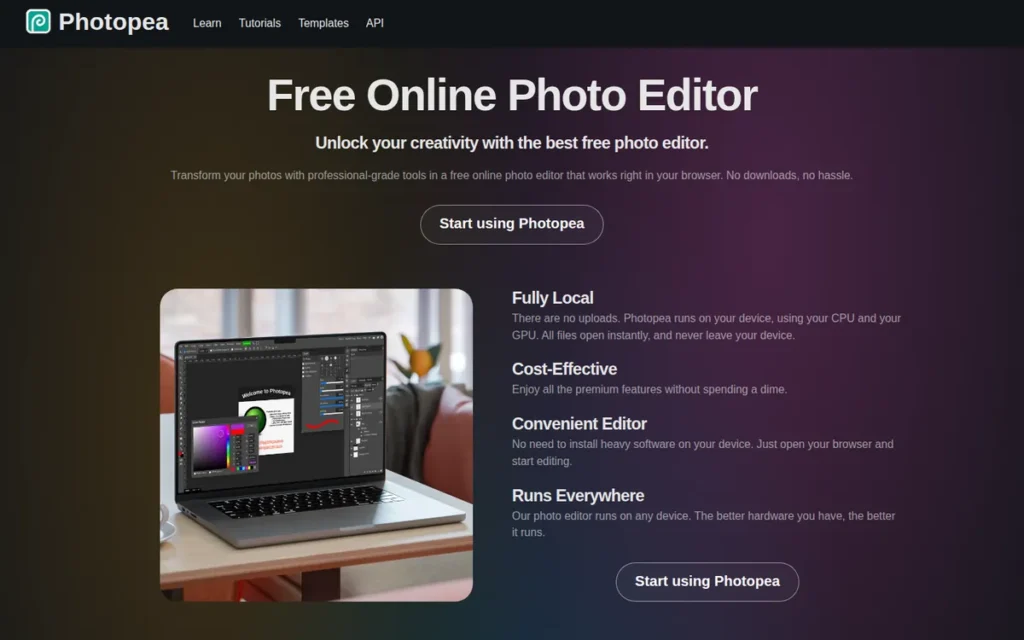
Category: Full Layer Editor: apps that reproduce Photoshop’s layer-based raster editing, including masks and compositing.
At a Glance
- Category: Full Layer Editor
- Best For: Anyone who needs to open, edit and save layered PSD files on any device without installing software
- Price Range: Free with ads. Premium is sold as prepaid passes, reported at €8 for 30 days or €50 for 365 days (third-party trackers, November 2026).
- Primary Strength: Photopea treats PSD as its native format and opens and saves layered Photoshop files directly in the browser.
- Biggest Limitation: Photopea slows down on very large files, shows ads on its free tier and is maintained by a single developer.
- One-Line Summary: Photopea is the most PSD-faithful Photoshop alternative in this ranking for 2026. It is a free browser-based editor that opens and saves layered PSD files on any operating system.
- Last Verified: November 2026
Overview
Photopea is a free browser-based image editor modelled on Photoshop’s interface and built around the PSD format. It is for designers, students and content creators who need to open, edit and save layered Photoshop files on any device, including Chromebooks, without installing software.
Photopea processes files on the user’s own device rather than uploading them, and it keeps working offline once loaded (Photopea, accessed November 2026). Photopea has been built and maintained by one developer, Ivan Kutskir, since 2013 (Startup Bricks, accessed November 2026).
Key Features
- Photopea opens and saves layered PSD files natively, so edited files can go back to clients who use Photoshop without conversion (Photopea, accessed November 2026).
- Photopea supports layers, masks, adjustment layers, Liquify and Puppet Warp, according to its G2 listing (G2, accessed November 2026).
- Photopea reads PSD, AI, PDF, SVG, CDR and RAW formats in one browser editor (G2, accessed November 2026).
- Photopea processes images locally rather than on a server, according to the vendor’s documentation (Photopea, accessed November 2026).
- Photopea can be “installed” to open in its own browser window, but it has no true native desktop application (Photopea, accessed November 2026).
Best For
Photopea is best for Linux, Chromebook and browser-only users, and for anyone who needs to open and save editable PSD files without installing software.
Pricing
- Photopea gives free users every editing feature, but the free version shows ads and keeps fewer undo steps (third-party reviews, accessed November 2026).
- Photopea Premium is sold as prepaid passes that do not renew, reported at €8 for 30 days or €50 for 365 days, with 3,000 AI credits a month (third-party trackers citing Photopea, accessed November 2026). Confirm the price in Photopea’s Account window.
- Photopea’s prepaid model means a freelancer who needs ad-free editing for one project can buy a single 30-day pass and has nothing to cancel afterwards.
- Photopea has no price listed on G2 (G2, accessed November 2026).
Strengths
- Photopea holds a 4.5/5 Capterra rating from 113 reviews and a 4.6/5 G2 rating from 21 reviews (Capterra and G2, accessed November 2026). Both figures come from PlugRoute’s own research. One Capterra reviewer called Photopea “almost the same as Photoshop.”
- Photopea’s developer personally fixed a PSD compatibility problem with Affinity Photo after a user reported it on r/Affinity in 2023 (Reddit r/Affinity, accessed November 2026).
- Photopea processes files locally and works offline once loaded, which suits users with privacy concerns (Photopea, accessed November 2026).
- Photopea keeps its full editing toolset free. Premium mainly removes ads and adds AI credits (Photopea blog, accessed November 2026).
This aligns with community sentiment on r/photopea:
“It is basically the same as Photoshop. Many shortcuts are the same. The structure is also almost identical.” Posted by u/BlubboDE
Takeaway: Photopea’s near-identical layout and shortcuts let Photoshop users switch with almost no relearning, and Photoshop tutorials largely carry over.
Limitations
Photopea’s biggest trade-off is browser limits in exchange for running without an install. G2 reviewers report slowdowns on oversized files (G2, accessed November 2026).
- Photopea’s free tier draws Trustpilot complaints that ads cause slowdowns and freezes (Trustpilot, accessed November 2026).
- Photopea was described as “riddled with bugs and memory issues” in a January 2024 Reddit reply, although another user in the same thread called it “100% the best” (Reddit r/opensource, January 2024).
- Photopea depends on one developer, which is a continuity risk for anyone building a business workflow on it.
- Photopea’s CMYK print support could not be confirmed from official sources. Its RAW handling imports files but is not a professional RAW developer.
Verdict
Photopea is the best Photoshop alternative in this ranking for keeping PSD files editable, because PSD is its native format and it runs free in any browser. Photopea ranks #2 (3.95/5), behind Affinity by Canva. The gap comes from small review samples and the lack of a professional RAW developer, not from weaker PSD handling.
Photopea suits Linux users, students and anyone exchanging layered files with Photoshop users. Photographers with large RAW files should use Photopea alongside a desktop editor.
How Does Photopea Compare with Adobe Photoshop?
- Photopea comes closest of any ranked tool to Photoshop’s interface and PSD handling.
- Photopea falls short of Photoshop on large-file performance, professional RAW work and vendor scale.
- Photopea costs €0 to about €50/year in prepaid passes (third-party reports), against roughly $276/year for Photoshop.
3. GIMP: Best Truly Free, Open-Source Editor (and Best for Linux)
Category: Full Layer Editor: apps that reproduce Photoshop’s layer-based raster editing, including masks and compositing.
At a Glance
- Category: Full Layer Editor
- Best For: Linux users, students and budget-conscious editors who want a capable layered editor with no strings attached
- Price Range: Free and open source (GPL), with no subscription, account, ads or paid tier
- Primary Strength: GIMP delivers layered retouching, compositing and non-destructive filters at $0 on Windows, macOS and Linux, with no account or ads.
- Biggest Limitation: GIMP still lacks native adjustment layers and a CMYK working mode, and complex PSD files may lose effects or adjustment data.
- One-Line Summary: GIMP is the only ranked Photoshop alternative in 2026 that is completely free with no account, ads or paywall. It is also the strongest native option for Linux users.
- Last Verified: November 2026
Overview
GIMP (GNU Image Manipulation Program) is a free, open-source desktop image editor for Windows, macOS and Linux. Students, Linux users, photographers and budget-conscious designers use it for layered retouching and compositing without a subscription, account, ads or paid features.
GIMP 3.2, released in March 2026, builds on the non-destructive filters that GIMP 3.0 introduced in March 2025. It adds import of more PSD layer styles and a CMYK ink-coverage readout (GIMP, March 2026). GIMP has been in development since 1996 (G2, November 2026).
Key Features
- GIMP’s non-destructive filters, introduced in GIMP 3.0 and built on the GEGL engine, can be edited, reordered or removed, and they are saved in GIMP’s native XCF format (GIMP, March 2025).
- GIMP can approximate adjustment layers by applying non-destructive filters to a pass-through layer group (GIMP documentation, accessed November 2026).
- GIMP supports layers, layer masks, compositing, pressure-sensitive stylus painting and thousands of mostly free third-party plug-ins (G2, November 2026).
- GIMP imports and exports PSD files and CMYK JPEG and TIFF files, and it supports soft-proofing for print (GIMP, March 2025).
- GIMP hands RAW files to a separate developer such as darktable or RawTherapee rather than processing them itself (GIMP, June 2025).
Best For
GIMP is best for Linux users, students and freelancers who need a native desktop layered editor at $0. It suits people who are willing to learn a workflow that differs from Photoshop’s.
Users on r/GIMP noted:
“One thing I’d really caution though, avoid stuff like PhotoGIMP or any patches that make GIMP behave like Photoshop. I know it sounds appealing, but it kind of traps you. You end up expecting Photoshop behavior and getting frustrated when things don’t match. Better to just learn how GIMP achieves the same results, even if the approach is different.” Posted by u/yosbeda
Takeaway: GIMP works best for Photoshop switchers who learn its own way of doing things, while trying to make it behave exactly like Photoshop leads to frustration.
Pricing
- GIMP is free and open source under the GPL, with no subscription, account, ads or premium tier (GIMP, accessed November 2026).
- GIMP has no price listed on G2 (G2, November 2026).
- GIMP saves the full cost of Photoshop, which is about $828 over three years at Photoshop’s $22.99/month G2 list price.
- GIMP provides builds for Windows, macOS and Linux, with Linux packages in AppImage, Flatpak and Snap formats (GIMP, accessed November 2026).
Strengths
- GIMP 3.0 added non-destructive filters, on-canvas previews and Adobe RGB color-space support (GIMP, March 2025). GIMP 3.2 then extended PSD layer-style import (GIMP, March 2026).
- GIMP holds a 4.3/5 G2 rating from 1,484 reviews, the largest sample among the ranked Full Layer Editors. “Free Services” and “Photo Editing” are its most-mentioned positives (G2, November 2026).
- GIMP’s download mirrors handle “dozens of thousands of daily downloads,” according to the project (GIMP, October 2025).
- GIMP has supported 16- and 32-bit high-bit-depth editing since version 2.10 (GIMP 2.10 release notes, April 2018). This corrects an outdated claim that is still repeated on Reddit.
Limitations
GIMP’s zero cost comes with workflow gaps. Even after GIMP 3.2, it has no native adjustment layers and no CMYK working mode (GIMP, March 2026).
- GIMP may not carry over PSD adjustment layers and smart objects cleanly. GIMP’s own development update describes PSD adjustment-layer import as work in progress (GIMP, August 2026).
- GIMP needs a separate program, such as darktable, for RAW files, and it has no built-in AI tools (GIMP, June 2025).
- GIMP’s most-cited G2 con is “Learning Curve” (11 mentions). Its 89.6% share of 4–5 star reviews is the lowest among the alternatives with supplied G2 data (G2, November 2026).
- GIMP users in an r/opensource thread from 2023–2025 reported that transforming text flattens it into pixels, though much of that thread predates GIMP 3.0 (Reddit r/opensource, accessed November 2026).
Verdict
GIMP is the best completely free Photoshop alternative in this ranking for 2026 and the strongest native choice for Linux. GIMP ranks #3 (3.65/5). It earned the only perfect cost score (5/5) but lost points for having no native adjustment layers (C1 = 3) and only partial PSD fidelity (C2 = 3).
Readers who rely on adjustment layers, CMYK print work or complex PSD files should test GIMP carefully or choose Affinity by Canva or Photopea.
How Does GIMP Compare with Adobe Photoshop?
- GIMP matches Photoshop on core layering, masking and retouching.
- GIMP falls short of Photoshop on adjustment layers, CMYK, built-in RAW editing, AI tools and PSD fidelity.
- GIMP saves the full Photoshop cost of about $276/year.
4. CyberLink PhotoDirector: Best One-Time Purchase with Built-In AI and RAW Tools
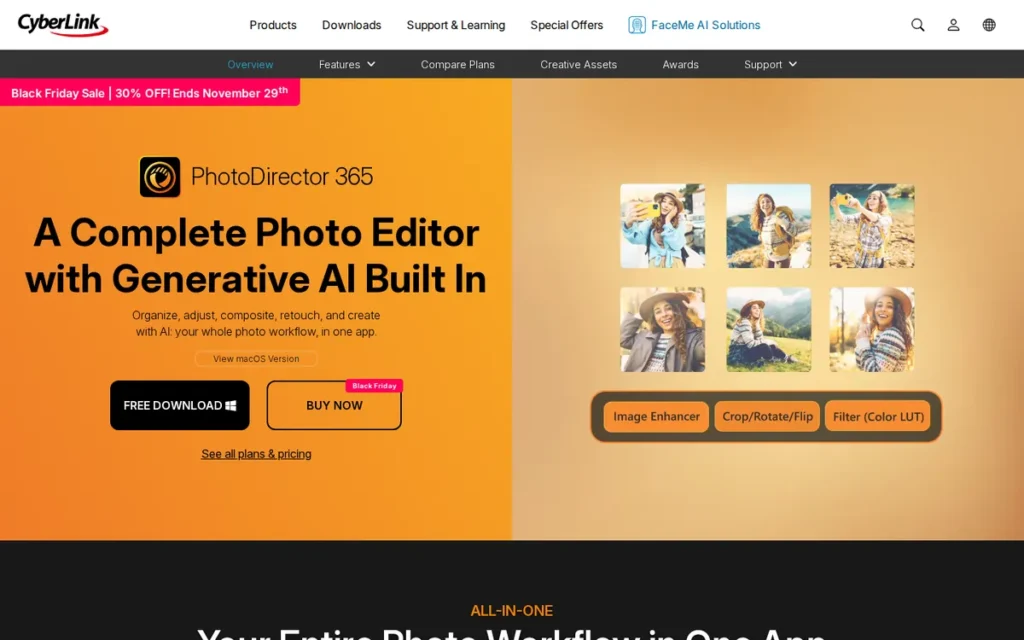
Category: AI Consumer Editor: easy-to-learn editors that lead with AI retouching and quick edits rather than full Photoshop parity.
At a Glance
- Category: AI Consumer Editor
- Best For: Hobbyist photographers and content creators on Windows or Mac who want AI retouching and basic layers without a subscription
- Price Range: $54.99/year for PhotoDirector 365, or $119.99 one-time list price for PhotoDirector 2027 (CyberLink, accessed November 2026)
- Primary Strength: CyberLink PhotoDirector packs AI retouching, RAW editing and layers into a low-cost app with a one-time purchase option.
- Biggest Limitation: CyberLink PhotoDirector saves layered work in its own PHI format rather than PSD, and its one-time version leaves out most generative AI tools.
- One-Line Summary: CyberLink PhotoDirector is an affordable, AI-heavy desktop photo editor in 2026 for hobbyists who want a one-time purchase. It does not suit PSD-based workflows.
- Last Verified: November 2026
Overview
CyberLink PhotoDirector is a consumer photo editor for Windows, Mac and Android. It combines photo organizing, RAW editing, layered compositions and AI retouching for hobbyists and creators who want quick AI results and a one-time alternative to Photoshop’s subscription.
CyberLink PhotoDirector stores layered projects in its own PHI format, and PCMag’s review did not confirm PSD import (PCMag, accessed November 2026). CyberLink, the company behind CyberLink PhotoDirector, was founded in 1996 and is based in New Taipei City, Taiwan (G2, November 2026).
Key Features
- CyberLink PhotoDirector includes AI object and background removal, portrait retouching and image generation (CyberLink, accessed November 2026).
- CyberLink PhotoDirector supports layered compositions and RAW editing alongside a built-in photo organizer (CyberLink, accessed November 2026).
- CyberLink PhotoDirector can turn still photos into short animated videos for social content (CyberLink, accessed November 2026).
- CyberLink PhotoDirector 365 includes 1,200 AI credits a year (100 a month) and 50 GB of cloud storage (CyberLink, accessed November 2026).
- CyberLink PhotoDirector is optimized for NVIDIA RTX and Intel Core Ultra AI PCs, according to a vendor claim (CyberLink, accessed November 2026).
Best For
CyberLink PhotoDirector is best for Windows and Mac hobbyists and social creators who want quick AI retouching and organizing and who do not need to exchange PSD files.
Pricing
CyberLink PhotoDirector has no price listed on G2 (G2, November 2026). CyberLink’s US pages list these options (CyberLink, accessed November 2026):
- CyberLink PhotoDirector 365 costs $54.99/year and includes 1,200 AI credits.
- CyberLink Director Suite 365 costs $99.99/year and includes 3,000 AI credits.
- CyberLink PhotoDirector 2027 is a one-time purchase listed at $119.99. CyberLink’s US page showed a promotional price of $84.99 when PlugRoute checked in November 2026.
- CyberLink PhotoDirector’s one-time version leaves out most generative AI tools and stock content (PCMag, accessed November 2026).
Strengths
- CyberLink PhotoDirector’s Android app holds a 4.2/5 Google Play rating from about 943,000 reviews (Google Play, November 2026). That is a mobile-app rating, so it is not directly comparable to the desktop G2 scores in this article.
- CyberLink PhotoDirector received 4/5 from TechRadar, which called it a “powerful multi-faceted beast.” PCMag called it “an affordable, AI-packed alternative” (TechRadar and PCMag, accessed November 2026).
- CyberLink PhotoDirector holds a 4.3/5 G2 rating from 53 reviews, with 92.5% at 4–5 stars and “AI Tools” among its top positives (G2, November 2026).
- CyberLink PhotoDirector 365 costs $54.99/year, less than a quarter of Photoshop’s roughly $276/year G2 list price (CyberLink, accessed November 2026).
Limitations
CyberLink PhotoDirector’s biggest trade-off is weak PSD support in exchange for a low price. It saves layered work in the proprietary PHI format, and PSD import is unconfirmed (PCMag, accessed November 2026).
- CyberLink PhotoDirector’s RAW output trailed Capture One and Lightroom, which recovered more detail and truer color in PCMag’s testing (PCMag, accessed November 2026).
- CyberLink PhotoDirector slows down with large files, according to G2 reviewers, and TechRadar saw lag and crashes on Mac (G2, November 2026; TechRadar, accessed November 2026).
- CyberLink PhotoDirector’s AI runs on credits. Users of CyberLink’s sister app, PowerDirector, complained about core features moving to credits, and CyberLink replied in August 2026 that it would review those concerns. This is indirect evidence about CyberLink’s credit model (Reddit r/powerdirector, accessed November 2026).
- CyberLink PhotoDirector’s G2 sample of 53 reviews is small (G2, November 2026).
Users of CyberLink’s sister app on r/powerdirector noted:
“They are nickeling and diming everyone now. The AI feature that use to be free, they are now charging to use it. What is even the point of a sub?” Posted by u/Primary_Employee1750
Takeaway: CyberLink’s habit of moving AI features behind paid credits in its 365 apps is a real cost risk for PhotoDirector 365 subscribers who rely on AI tools.
Verdict
CyberLink PhotoDirector is the best-value one-time purchase in this ranking for 2026, for hobbyists who want AI retouching and RAW basics without a subscription. CyberLink PhotoDirector ranks #4 (2.90/5). Its proprietary PHI format scores 1/5 on PSD fidelity, which is the largest single reason for its gap behind the Full Layer Editors.
CyberLink PhotoDirector does not fit workflows that depend on PSD files or professional RAW quality. Mac users should check its stability before buying.
How Does CyberLink PhotoDirector Compare with Adobe Photoshop?
- CyberLink PhotoDirector matches Photoshop on easy AI cutouts and basic layers.
- CyberLink PhotoDirector falls short of Photoshop on PSD support, editing depth, RAW quality and large-file performance.
- CyberLink PhotoDirector costs $54.99/year or $119.99 once at list price, compared with about $276/year for Photoshop.
5. Pixlr: Best Low-Cost Browser Editor for Quick AI Edits
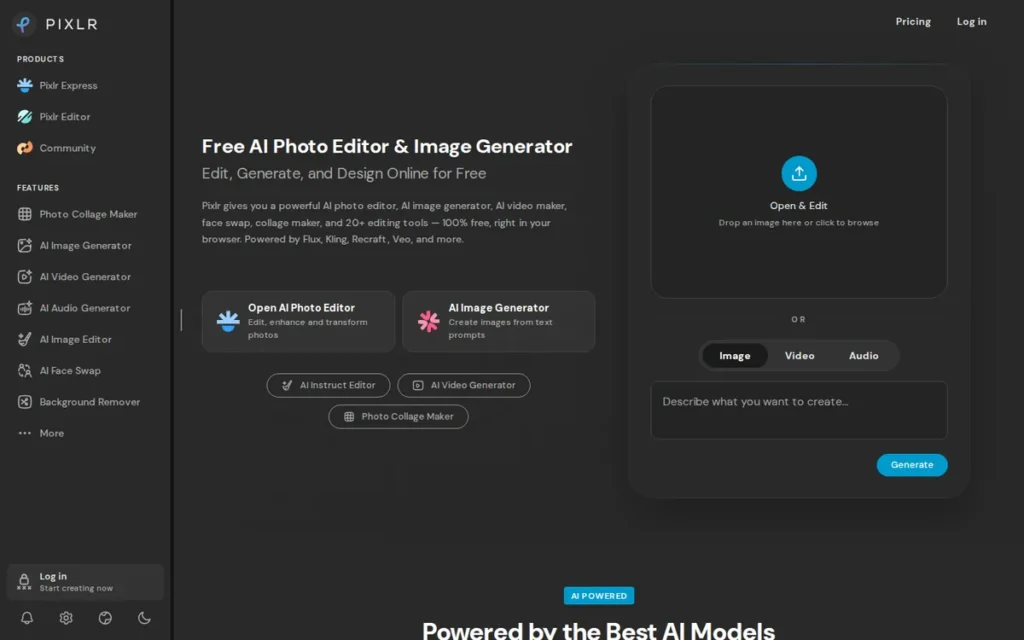
Category: AI Consumer Editor: easy-to-learn editors that lead with AI retouching and quick edits rather than full Photoshop parity.
At a Glance
- Category: AI Consumer Editor
- Best For: Content creators and small businesses who need fast browser-based edits and AI background removal at a very low cost
- Price Range: Free with ads and limits. Premium is $4.90/month and Creative Pack is $14.99/month (G2 list prices). The vendor’s own page lists different plans.
- Primary Strength: Pixlr delivers layered browser editing and quick AI cutouts at a very low monthly cost, with nothing to install.
- Biggest Limitation: Pixlr has no RAW support, only partial PSD support with no documented PSD export, and a free tier limited by ads and daily save caps.
- One-Line Summary: Pixlr is a low-cost browser photo editor in 2026 for quick AI edits and background removal. It does not replace Photoshop for professional or PSD-based work.
- Last Verified: November 2026
Overview
Pixlr is a browser-based photo editing suite with quick-edit, layered and template editors plus credit-based AI tools. It is built for content creators, students and small businesses who need fast edits and background removal without installing software or paying for Photoshop.
Pixlr was founded in 2008, and Inmagine Group, the owner of 123RF, has owned Pixlr since 2017 (CreativeVault, accessed November 2026). Pixlr is headquartered in Singapore (G2, November 2026).
Key Features
- Pixlr Editor (Pixlr E) supports layers and masks for browser-based compositing (Tested Intelligence, accessed November 2026).
- Pixlr Express handles one-click quick edits, and Pixlr Designer provides template-based graphics (Tested Intelligence, accessed November 2026).
- Pixlr includes AI generative fill, background removal and image generation, which are paid for with monthly AI credits (Pixlr, accessed November 2026).
- Pixlr runs entirely in the browser, so it works on Windows, Mac, Linux and Chromebooks (Pixlr, accessed November 2026).
- Pixlr E opens simpler layered PSD files, but complex files may lose masks or adjustment layers, and no PSD export is documented (Tested Intelligence and AutoGPT, accessed November 2026).
Best For
Pixlr is best for social creators and small businesses who make quick edits and AI cutouts in a browser and do not work with RAW or complex PSD files.
Pricing
- Pixlr’s G2 list prices are Free (“Always Free”), Premium at $4.90/month with a 30-day trial, and Creative Pack at $14.99/month (G2, November 2026; may change).
- Pixlr’s own pricing page shows different plans: Plus at $1.99–$2.49/month, Premium at $7.99–$9.99/month, Ultra from $19.99/month and Ultra Max at $39.99–$49.99/month (Pixlr, accessed November 2026).
- Pixlr’s free tier has ads and a daily save limit that Pixlr does not publish. Users report roughly two to three saves a day, and Pixlr’s Plus plan advertises unlimited saves (Pixlr and AI Tools Police, accessed November 2026).
Strengths
- Pixlr holds a 4.4/5 G2 rating from 749 reviews, with 95.7% at 4–5 stars and “Ease of Use” as its top positive (G2, November 2026).
- Pixlr’s background removal is among its most-mentioned G2 positives, with 6 mentions, which reflects its main strength in quick AI cutouts (G2, November 2026).
- Pixlr’s Premium G2 list price of $4.90/month is about a fifth of Photoshop’s $22.99/month G2 list price (G2, November 2026).
- Pixlr needs no installation and runs on any device with a desktop browser, including Linux machines and Chromebooks (Pixlr, accessed November 2026).
Limitations
Pixlr’s biggest trade-off is shallow editing in exchange for a low price and convenience. It has no RAW support, and its PSD support is partial with no documented export (AutoGPT, accessed November 2026).
- Pixlr’s free tier has a reported 10 MB upload limit (AutoGPT, accessed November 2026).
- Pixlr drew complaints about a forced interface redesign and freezes in an r/pixlr thread from November 2023. A third-party site also reports a 1.7/5 Trustpilot score from 134 reviews that may be out of date (Reddit r/pixlr, November 2023; CreativeVault, accessed November 2026).
- Pixlr’s G2 reviewers ask for finer selection and healing tools and fewer freezes on large layered files (G2, November 2026).
- Pixlr’s AI tools run on monthly credits, so heavy AI users may need a higher-priced tier (Pixlr, accessed November 2026).
Verdict
Pixlr is the cheapest way in this ranking to get layered browser editing and AI background removal in 2026, but it is a quick-edit tool rather than a Photoshop replacement. Pixlr ranks #5 (2.75/5), below CyberLink PhotoDirector, because its price sources conflict (C3 = 2) and it has no RAW support (C6 = 1).
Pixlr suits creators whose work is mostly social images and cutouts. Anyone with RAW files or complex PSD projects should choose a Full Layer Editor.
How Does Pixlr Compare with Adobe Photoshop?
- Pixlr matches Photoshop on basic layers, masks and quick AI cutouts.
- Pixlr falls short of Photoshop on RAW, PSD reliability, precision tools and stability.
- Pixlr costs about $59–$180/year at G2 list prices, compared with about $276/year for Photoshop.
6. Capture One Pro: Best for Professional RAW Processing and Tethered Studio Shooting
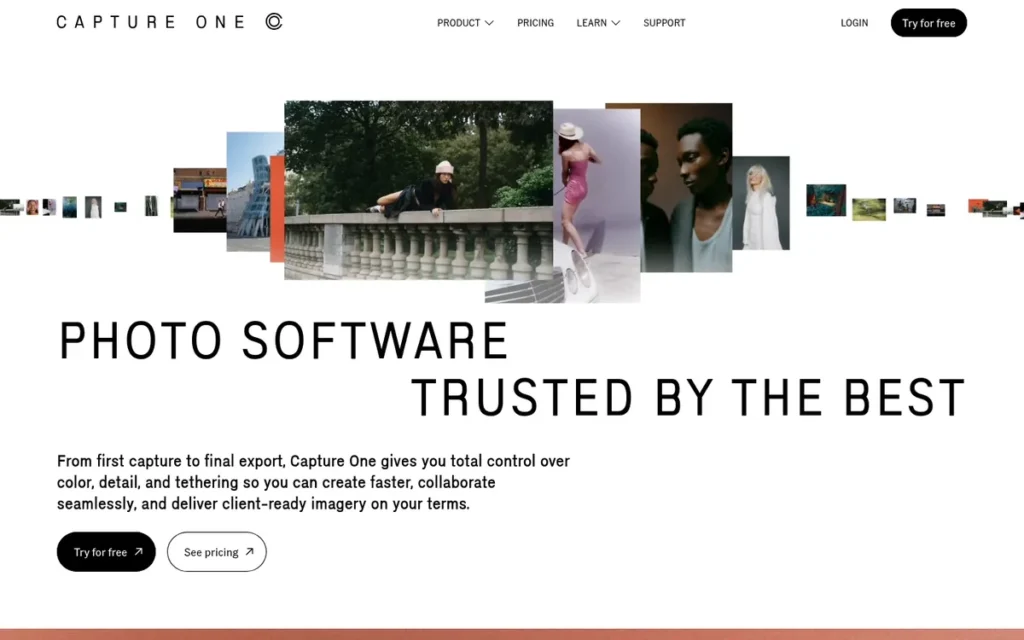
Category: RAW & Tethering Specialist: professional RAW development and studio capture tools that work alongside a layer editor, not in place of one.
At a Glance
- Category: RAW & Tethering Specialist
- Best For: Commercial and studio photographers who need tethered capture and precise RAW color, usually paired with a layer editor
- Price Range: $26.25–$40/month (Capture One, November 2026); $508 one-time (third-party, unconfirmed)
- Primary Strength: Capture One Pro provides studio-grade RAW color processing and the only professional tethered shooting in this ranking.
- Biggest Limitation: Capture One Pro does no pixel-level compositing or generative fill, so it complements Photoshop rather than replacing it.
- One-Line Summary: Capture One Pro is the only ranked tool with professional tethered shooting in 2026, and it competes with Lightroom more than with Photoshop.
- Last Verified: November 2026
Overview
Capture One Pro is a professional RAW processing and tethered-shooting application for Windows and Mac, often used as a Lightroom alternative. It is built for commercial, studio and advertising photographers who need precise color grading, fast capture straight from the camera and organized shoot management.
Capture One Pro is usually paired with a layer editor such as Photoshop. Capture One, the company behind Capture One Pro, was founded in 1993 and is based in Frederiksberg, Denmark (G2, November 2026).
Key Features
- Capture One Pro supports tethered shooting, which sends images straight from the camera to the computer during a shoot (Capture One, accessed November 2026).
- Capture One Pro provides detailed RAW color controls and non-destructive adjustment layers for local edits (Capture One, accessed November 2026).
- Capture One Pro includes AI masks that select subjects, backgrounds and people automatically (Capture One, accessed November 2026).
- Capture One Pro organizes work as Sessions (one folder per shoot) or Catalogs (one library) (Capture One, accessed November 2026).
- Capture One Pro exports masks as alpha channels inside PSD or PSB files so compositing can continue in a layer editor (Capture One, accessed November 2026).
Best For
Capture One Pro is best for commercial and studio photographers who shoot tethered and need top-tier RAW color, usually alongside a separate layer editor.
Pricing
Capture One Pro has no price listed on G2 (G2, November 2026). See Capture One’s pricing page for current terms.
- Capture One Pro costs $40/month, or $26.25/month billed annually (Capture One, accessed November 2026).
- Capture One Pro’s perpetual licence is reported at $508 (PricingSaaS, accessed November 2026; unconfirmed).
- Capture One Studio is reported at $87/month, or $67.42/month billed annually (PricingSaaS, accessed November 2026; unconfirmed).
- Capture One Pro perpetual licences bought since February 14, 2023 include bug fixes but not later feature updates (Capture One support, February 2023).
Strengths
- Capture One Pro, together with Lightroom, recovered more detail and produced truer colors than CyberLink PhotoDirector in PCMag’s RAW testing (PCMag, accessed November 2026).
- Capture One Pro holds a 4.5/5 G2 rating from 79 reviews. G2’s summary says users usually switch to it for tethered shooting and stronger color control (G2, November 2026).
- Capture One Pro is described by working photographers on r/LightLurking as the main tethering tool in commercial studios, and one called it “the superior tethering app” (Reddit r/LightLurking, accessed November 2026).
- Capture One Pro has a separate iPad app, launched in June 2022 (Capture One, June 2022).
Limitations
Capture One Pro’s biggest trade-off is a narrow scope in exchange for professional RAW quality. It has no pixel-level compositing or generative fill (Capture One, accessed November 2026).
- Capture One Pro rarely removes the need for a layer editor. One photographer described “99% of my commercial workflow” as “C1 + Ps,” with most of the work done in Photoshop (Reddit r/LightLurking, accessed November 2026).
- Capture One Pro has the highest subscription cost in this ranking, at $315–$480/year (Capture One, accessed November 2026).
- Capture One Pro perpetual licences have received only bug fixes since February 2023. Users on Capture One’s own forum called the change “exploitive” (Capture One forum, accessed November 2026).
- Capture One Pro’s G2 reviewers report a complex interface and mixed support experiences, and they ask for better layer and mask controls (G2, November 2026).
A long-time user on r/captureone shared their experience:
“When I swapped from LR it genuinely did handle color better and highlights and shadows.
That’s no longer the case, C1 currently has more workflow blocks than pros.
However if you’re a tethered shooter it’s basically the option you should be using. Period.” Posted by u/Neat-Break5481
Takeaway: Capture One Pro’s edge over Lightroom in color has narrowed for some long-time users, but it remains the default choice for tethered studio shooting.
Verdict
Capture One Pro replaces Lightroom, not Photoshop, and it is the best tool in this ranking for professional RAW processing and tethered studio shooting. Capture One Pro ranks #6 (2.65/5) because it is a RAW specialist scored against a Photoshop-replacement rubric, not because it is weak. It earned the only 5/5 for photography capability.
Capture One Pro suits commercial photographers who already need tethering. Readers who mainly retouch and composite should choose a Full Layer Editor.
How Does Capture One Pro Compare with Adobe Photoshop?
- Capture One Pro beats Photoshop on tethering and RAW workflow.
- Capture One Pro falls short of Photoshop on compositing, pixel retouching and AI generation.
- Capture One Pro costs $315–$480/year (Capture One, accessed November 2026). Paying for both Capture One Pro and Photoshop costs about $591/year, roughly 2.5 times Adobe’s $19.99/month Photography plan (G2, November 2026).
7. Canva: Best for Template-Based Social Graphics (Not Photo Retouching)
Category: Template Design Platform: browser-first design tools built around templates and drag-and-drop layouts rather than pixel-level photo editing.
At a Glance
- Category: Template Design Platform
- Best For: Content creators, marketers and small businesses who make social posts, presentations and branded graphics from templates
- Price Range: Free; Pro $15/user/month and Teams $10/user/month (G2 list prices); Canva Pro reported at $144/year on canva.com (November 2026)
- Primary Strength: Canva makes template-based social and marketing graphics fast for non-designers and holds a 4.7/5 G2 rating from 7,857 reviews.
- Biggest Limitation: Canva lacks Photoshop-style masks, blend modes and adjustment layers, and it may rasterize imported PSD elements.
- One-Line Summary: Canva had more than 265 million monthly active users at the end of 2025. It is the best fit in this ranking for quick template-based social graphics, but not for photo retouching or PSD editing.
- Last Verified: November 2026
Overview
Canva is a browser-first design platform with over a million templates, stock assets and Magic Studio AI tools. It is built for content creators, marketers, students and small businesses who need social graphics and branded designs quickly, rather than pixel-level retouching.
Canva has owned Affinity by Canva, ranked #1 here, since it bought Serif in March 2024 (The Dead Pixels Society, accessed November 2026). PlugRoute scored Canva and Affinity by Canva with the same rubric.
Key Features
- Canva provides over a million templates and a stock library of images, videos, soundtracks and fonts (Canva vendor description on G2, November 2026).
- Canva’s Magic Studio includes Magic Eraser, prompt-based Magic Edit and a Background Remover that is only on paid plans (Canva, accessed November 2026).
- Canva’s Layers panel reorders and hides design elements but offers no Photoshop-style masks, blend modes or adjustment layers (Capterra, accessed November 2026).
- Canva imports PSD files, but some elements may be rasterized, and merged designs cannot be split back into editable parts (Canva Help Center, accessed November 2026).
- Canva supports real-time team collaboration and is available in 74 languages (G2, November 2026).
Best For
Canva is best for social media managers, small businesses and students whose main job is template-based graphics. Canva does not suit readers who need to retouch photos or edit layered PSD files.
Pricing
- Canva’s G2 list prices are Free, Pro at $15/user/month and Teams at $10/user/month (G2, November 2026; may change).
- Canva’s US annual Pro price was reported at $144/year in November 2026 pricing checks, while earlier research recorded $120/year (Canva, accessed November 2026). Confirm the price on canva.com.
- Canva Teams was listed at $100/year per person with a three-person minimum, and Teams is currently closed to new sign-ups (Canva, accessed November 2026).
- Canva moved Teams to per-person pricing in 2024, after previously charging $119.99/year for up to five people, and customers pushed back (Professionals Toolkit, accessed November 2026).
Strengths
- Canva holds a 4.7/5 G2 rating from 7,857 reviews, with 98.6% at 4–5 stars and “Easy Everyday Design” mentioned 1,069 times (G2, November 2026). This is the highest rating and largest sample among the ranked alternatives.
- Canva reported more than 265 million monthly active users and more than 31 million paying users at the end of 2025 (Wikipedia citing Canva, accessed November 2026).
- Canva won Fast Company’s 2025 Innovation by Design award in the Large Business category and ranked No. 5 on CNBC’s 2025 Disruptor 50 list (Canva newsroom, accessed November 2026).
- Canva lists “Ready-Made Design Templates” (695) and “Faster Design Creation” (531) among its most-cited G2 positives (G2, November 2026).
Limitations
Canva’s biggest trade-off is shallow editing in exchange for speed and simplicity. Its Layers panel has no masks, blend modes or adjustment layers, and Canva has no RAW editing.
- Canva may rasterize imported PSD elements, so layered Photoshop files can lose editability (Canva Help Center, accessed November 2026).
- Canva’s most-cited G2 con is “Features Behind Paywall” (353 mentions), followed by “Lacks Advanced Design Tools” (156), “Large Project Lag” (125) and “High Subscription Costs” (119) (G2, November 2026).
- Canva’s generative AI was found less consistent than Photoshop’s Generative Fill for realistic edits by r/Affinity users (Reddit r/Affinity, March 2026).
- Canva’s Trustpilot reviewers report problems with charges after free trials and with refunds (Trustpilot, accessed November 2026).
Verdict
Canva is the best tool in this ranking for template-based social graphics, but it ranks last as a Photoshop replacement because it lacks masks, adjustment layers, RAW support and reliable PSD editing. Canva ranks #7 (2.40/5) despite the highest user-rating score in the set (C5 = 5/5), so its last place reflects task fit rather than product quality.
Canva suits creators who mostly used Photoshop for social posts and simple layouts.
How Does Canva Compare with Adobe Photoshop?
- Canva beats Photoshop on templates, speed and collaboration.
- Canva falls short of Photoshop on pixel retouching, masking, adjustment layers, PSD fidelity and RAW.
- Canva Pro costs about $144/year (vendor, reported) to $180/year (G2 list), compared with about $276/year for Photoshop.
How Much Do Photoshop Alternatives Cost Compared with Photoshop?
Over three years, Adobe Photoshop costs about $828 at its $22.99/month G2 list price. Every ranked alternative costs less except a Capture One Pro subscription, which comes to about $945. GIMP and Affinity by Canva’s core editor cost $0, and CyberLink PhotoDirector 2027 lists at $119.99 for a one-time licence.
| Product | Platforms | Price Model (source) | Approx. Annual Cost | Approx. 3-Year Cost | PSD Open/Save | Adjustment Layers | RAW | AI Access | Switching Effort | G2 Rating (reviews) |
|---|---|---|---|---|---|---|---|---|---|---|
| Adobe Photoshop | Windows, Mac, iPad | Subscription (G2 list) | ~$276 | ~$828 | Native | Yes | Via Camera Raw/Lightroom | Included | Baseline | 4.6 (13,449) |
| Affinity by Canva | Windows, Mac, iPad | Free; AI needs paid Canva plan (vendor) | $0 core; ~$144 with Canva Pro | $0 core; ~$432 with Canva Pro | Opens with layers and masks; export not documented | Yes | Built in | Paid Canva plan | Moderate (Capterra: mask layering confusing) | 4.5 (234)* |
| Photopea | Any browser | Free with ads; prepaid passes (third-party) | €0–~€50 | €0–~€150 | Native open and save | Yes | Imports RAW | Premium credits | Low (Photoshop-like interface) | 4.6 (21)* |
| GIMP | Windows, Mac, Linux | Free, open source (vendor) | $0 | $0 | Import and export; effects may not transfer | No (filter workaround) | Needs separate app | None built in | High (top G2 con: Learning Curve) | 4.3 (1,484) |
| CyberLink PhotoDirector | Windows, Mac, Android | Annual or one-time (vendor) | $54.99/yr or $119.99 once | $164.97 or $119.99 once | Saves PHI; PSD import unconfirmed | Not confirmed | Built in | Credits (365 plan) | Low (top G2 pro: Ease of Use) | 4.3 (53) |
| Pixlr | Any browser | Free + paid (G2 list; vendor differs) | ~$59–$180 | ~$176–$540 | Opens simpler PSDs; no export documented | Not documented | No | Credits | Low (top G2 pro: Ease of Use) | 4.4 (749) |
| Capture One Pro | Windows, Mac, iPad app | Subscription (vendor) or one-time (third-party, unconfirmed) | ~$315–$480 | ~$945 (annual billing) or $508 once | Exports masks to PSD/PSB only | Yes (local adjustments) | Studio-grade | AI masks | High (complex interface per G2) | 4.5 (79) |
| Canva | Browser, iPad | Free + Pro (G2 list; vendor reported $144/yr) | $0–$180 | $0–$432 at $144/yr | Imports; may rasterize | No | No | Magic Studio; some paid | Very low (top G2 pro: Easy Everyday Design) | 4.7 (7,857) |
*The Affinity by Canva and Photopea G2 figures come from PlugRoute’s own research, not the supplied G2 dataset (G2, accessed November 2026). Smaller samples carry less statistical weight.
Which Photoshop Alternatives Open PSD Files Without Losing Layers?
Photopea keeps PSD files most intact because PSD is its native format. Affinity by Canva comes second: it keeps layers, groups, masks and many adjustments, but it may flatten smart objects. GIMP’s PSD support is partial, Canva may rasterize imported files, and CyberLink PhotoDirector saves in its own PHI format.
Opening a PSD is not the same as keeping it editable, and Photopea is the only ranked tool that uses PSD as its working format. No ranked alternative has documented full smart-object support (PlugRoute research synthesis of vendor documentation and TutKit and CG Channel reviews, November 2026).
| Product | Layers and Masks on Import | Adjustment Layers | Effects, Text, Smart Objects | Saves Editable PSD | Native Format | Source |
|---|---|---|---|---|---|---|
| Photopea | Yes | Yes | Smart-object fidelity not documented in PlugRoute’s sources; test before relying on it | Yes (native) | PSD | Photopea, accessed November 2026 |
| Affinity by Canva | Yes, with groups | Many preserved | Smart objects and advanced filters may flatten | Not documented | Not documented here | TutKit, accessed November 2026 |
| GIMP | Yes | Import in development | More layer styles since 3.2; smart objects may not transfer | Yes (export) | XCF | GIMP, March 2026 and August 2026 |
| CyberLink PhotoDirector | Not confirmed | Not confirmed | Not confirmed | No | PHI | PCMag, accessed November 2026 |
| Pixlr | Simpler PSDs open | May flatten | Complex features may flatten | No export documented | Not documented | Tested Intelligence, accessed November 2026 |
| Capture One Pro | Not a PSD editor | Not applicable | Not applicable | Exports masks to PSD/PSB | Sessions/Catalogs | Capture One, accessed November 2026 |
| Canva | Imports, may rasterize | No | Merged designs cannot be split | Not confirmed | Canva designs | Canva Help Center, accessed November 2026 |
PlugRoute did not run a hands-on PSD round-trip test for this edition, so every cell above is attributed to its source.
How to test a PSD in 10 minutes before switching:
- Duplicate a real client PSD that contains text, adjustment layers, a smart object and layer effects.
- Open the copy in the alternative and check each layer type against the original.
- Edit one text layer and one adjustment layer in the alternative.
- Save the file as PSD, if the tool supports it, and reopen it in Photoshop or Photopea.
- Record which elements were rasterized, flattened or lost before you decide.
Which Photoshop Alternatives Work Without a Subscription?
In 2026, “no subscription” and “no catch” are different things. GIMP is the only ranked editor that is free with no account, ads, credits or paywall. Affinity by Canva is free but needs a Canva account and charges for AI. CyberLink PhotoDirector 2027 lists at $119.99 once, and Photopea sells prepaid passes that do not renew.
These ranked tools are free but come with limits:
- Photopea is free with ads and fewer undo steps (third-party reviews, accessed November 2026).
- Pixlr is free with ads, an unpublished daily save limit and a reported 10 MB upload cap (AutoGPT, accessed November 2026).
- Canva is free, but its Background Remover requires a paid plan (Canva, accessed November 2026).
- Capture One Pro’s perpetual licence, reported at $508 (unconfirmed), gets bug fixes but not feature updates (Capture One support, February 2023).
| Product | Pricing Model | What “Free” Actually Means | AI Access | One-Time Option |
|---|---|---|---|---|
| GIMP | Free, open source | No account, ads or paywall | None built in | Not needed |
| Affinity by Canva | Free | Canva account required; V2 licences frozen | Paid Canva plan | Legacy V2 only (no updates) |
| Photopea | Free + prepaid Premium passes | Ads and fewer undo steps | Premium credits | Prepaid passes, reported €8/30 days or €50/365 days |
| CyberLink PhotoDirector | Annual or one-time | No free tier documented here | Credits on 365 plan | PhotoDirector 2027 at $119.99 list, without most generative AI |
| Pixlr | Free + paid | Ads, unpublished daily save limit, 10 MB upload cap reported | Credits | No |
| Capture One Pro | Subscription or one-time | Not free | AI masks included | ~$508, bug fixes only since 2023 (unconfirmed price) |
| Canva | Free + Pro | Background Remover on paid plans only | Magic Studio; some paid | No |
Free ways to try before committing: GIMP, Affinity by Canva, Photopea and Canva are free to start. Pixlr Premium has a 30-day trial (G2, November 2026). Check the CyberLink and Capture One websites for their current trial terms.
Which Photoshop Alternative Works on Mac, Linux, iPad or Browser?
GIMP is the only ranked full layer editor with a native Linux build. Affinity by Canva is the strongest ranked option for Mac and iPad. Platform support splits the seven ranked tools into four groups, so check your platform before comparing features:
- Linux (native): GIMP runs natively on Linux through AppImage, Flatpak and Snap packages.
- Browser on any OS: Photopea, Pixlr and Canva each run in a desktop browser on Windows, macOS and Linux.
- Windows, Mac and iPad: Affinity by Canva and Capture One Pro each support Windows, macOS and iPad.
- Windows, Mac and Android: CyberLink PhotoDirector supports Windows, macOS and Android.
| Product | Windows | macOS | Linux | iPad | Browser | Android |
|---|---|---|---|---|---|---|
| Affinity by Canva | Yes | Yes | No | Yes | No | No |
| Photopea | Via browser | Via browser | Via browser | Via browser (not separately tested) | Yes | Via browser (not separately tested) |
| GIMP | Yes | Yes | Yes (AppImage, Flatpak, Snap) | No | No | No |
| CyberLink PhotoDirector | Yes | Yes (TechRadar saw lag) | No | No | No | Yes |
| Pixlr | Via browser | Via browser | Via browser | Via browser (not separately tested) | Yes | Via browser (not separately tested) |
| Capture One Pro | Yes | Yes | No | Separate iPad app | No | No |
| Canva | Via browser | Via browser | Via browser | Yes | Yes | Not covered in our research |
When Should You Stay with Adobe Photoshop?
Stay with Adobe Photoshop if your work relies on smart objects, CMYK print editing or Generative Fill, if you regularly exchange PSD files with agencies, or if employers expect Adobe skills. No ranked alternative covers all of these needs in 2026, so switching would mean giving up something you depend on.
Photographers who already use Lightroom should also price Adobe’s Photography plan before leaving. At $19.99/month (G2, November 2026), it may be the cheapest way to keep a full professional workflow.
Adobe Photoshop remains the better choice in these situations:
- Smart objects: No ranked alternative has documented full support for Photoshop smart objects (PlugRoute research synthesis, November 2026).
- CMYK print work: GIMP has no CMYK working mode (GIMP, March 2026), and Photopea’s CMYK support could not be confirmed.
- Generative Fill: r/Affinity users judged Photoshop’s Generative Fill more consistent than Canva’s AI for realistic edits (Reddit r/Affinity, March 2026).
- Agency PSD exchange: Adobe Photoshop avoids round-trip risk, because no ranked alternative fully supports smart objects and only Photopea uses PSD as its native format (PlugRoute research synthesis, November 2026).
- Employer expectations: Job-seekers on r/Affinity report that employers still expect Adobe skills (Reddit r/Affinity, July 2026).
- Photography plan: Adobe’s Photography plan costs $19.99/month (G2, November 2026), less than Capture One Pro’s $26.25–$40/month (Capture One, accessed November 2026).
What Red Flags Should I Watch For When Evaluating Photoshop Alternatives?
Watch for these six red flags when choosing a Photoshop alternative:
- Vague “opens PSD” claims.
- Free tiers with hidden save limits or required accounts.
- AI credits on top of a subscription.
- One-time licences without feature updates.
- Prices that differ between sources.
- Template or RAW tools marketed as full Photoshop replacements.
Each one can cost you money, lost work or time spent relearning.
Red Flag #1: “Opens PSD” Without Saying What Survives
A tool that says it “opens PSD” may still flatten smart objects, drop layer effects or rasterize text. Look for documentation that lists which layers, masks, adjustment layers and effects survive import, and test a copy of a real file before you commit.
Red Flag #2: Free Tiers with Save Limits, Ads or Required Accounts
A free tier can hide limits that only show up in daily use. Pixlr’s free tier has an unpublished daily save limit that users report as two to three saves, Photopea’s free tier shows ads, and Affinity by Canva requires a Canva account (vendor pages, accessed November 2026).
Red Flag #3: AI Credits Stacked on a Subscription
With credit-based AI, you can pay for a plan and still run out of AI features each month. Pixlr, CyberLink PhotoDirector 365 and Photopea Premium all meter AI with monthly credits (vendor pricing pages, accessed November 2026).
Users of CyberLink’s PowerDirector complained on Reddit about core features moving to credits (Reddit r/powerdirector, accessed November 2026).
Red Flag #4: One-Time Licences Without Feature Updates
Some one-time licences no longer include new features, which lowers their long-term value. Capture One Pro perpetual licences have received bug fixes but not feature updates since February 2023 (Capture One support, February 2023). Affinity V2 licences will not be updated (Affinity, October 2025).
Red Flag #5: Prices That Differ Between Review Sites and the Vendor
Listed prices often conflict across sources, so confirm the price on the vendor’s site before you buy. Pixlr’s G2 list prices do not match its own pricing page, and Canva Pro has been recorded at both $120/year and $144/year on Canva’s US page (Pixlr and Canva, accessed November 2026).
Red Flag #6: Template or RAW Tools Sold as Full Photoshop Replacements
Template platforms and RAW developers are often listed next to full layer editors as if they did the same job. Canva has no masks or adjustment layers, and Capture One Pro has no compositing, so match the tool’s category to your actual task.
What Questions Should I Ask Before Choosing a Photoshop Alternative?
Before switching from Photoshop, check these seven things:
- Whether your PSD files survive import.
- What “free” really requires.
- Whether the tool runs natively on your platform.
- Whether it has adjustment layers.
- Whether it handles RAW and tethering.
- Whether a one-time licence gets updates.
- Whether clients expect Photoshop files.
These answers decide whether a switch saves money or creates rework.
Question #1: Will my existing PSD files keep their layers, text, effects and smart objects?
Your PSD files are only safe if the vendor documents what survives import and export. Photopea uses PSD natively, Affinity by Canva keeps layers and masks, and GIMP’s support is partial. If a vendor only says “supports PSD,” treat that as unconfirmed until you have tested your own file.
Question #2: Does the free version require an account, show ads or limit saves?
“Free” means very different things across this ranking. GIMP requires nothing, while Affinity by Canva needs a Canva account, Photopea shows ads and Pixlr limits daily saves on its free tier. Read the free-tier terms before you spend time learning a tool.
Question #3: Does it run natively on my platform (Mac, Linux, iPad or browser)?
Check platform support first, because an unsupported platform rules a tool out completely. GIMP is the only ranked full layer editor with a native Linux build, Affinity by Canva covers iPad, and Photopea runs in any desktop browser. Mac users should also check stability reports.
Question #4: Does it have native adjustment layers and masks?
Native adjustment layers are the clearest sign of a true Photoshop-style workflow. Affinity by Canva and Photopea offer them, while GIMP relies on non-destructive filters instead. Canva has neither masks nor adjustment layers, so it suits graphics rather than retouching.
Question #5: Does it handle RAW files and tethering, or will I need a second app?
Photographers should confirm built-in RAW processing and tethering before switching. Capture One Pro is the only ranked tool with professional tethering. Affinity by Canva and CyberLink PhotoDirector include RAW developers, GIMP needs darktable or RawTherapee, and Pixlr has no RAW support.
Question #6: If I buy once, will I still get updates?
A one-time purchase is only good value if it keeps working well for years. Ask whether the licence includes feature updates, bug fixes and new camera support.
Capture One Pro perpetual licences get bug fixes but not feature updates (Capture One support, February 2023). CyberLink PhotoDirector’s one-time version leaves out most generative AI (PCMag, accessed November 2026).
Question #7: Do clients or employers expect me to deliver Photoshop files?
Your professional context can matter more than price. An r/Affinity user noted that “almost everyone will demand you use Adobe” for design jobs (Reddit r/Affinity, July 2026). If you exchange PSDs with agencies, choose Photopea or test round-trips carefully.
How Did We Rank These Photoshop Alternatives?
PlugRoute scored each product from 1 to 5 on six weighted criteria:
- Photoshop workflow parity.
- PSD file fidelity.
- Cost transparency.
- Platform coverage.
- Verified user ratings.
- Professional photography capability.
The weighted total sets the rank. Every figure is labelled by source, and figures that could not be confirmed are marked unconfirmed.
Ranking criteria and weights:
- C1, Photoshop Workflow Parity (25%): This criterion matters because readers fear getting only a weaker subset of Photoshop’s layered editing.
- C2, PSD File Fidelity (20%): This criterion matters because existing PSD files can lose layers, effects or adjustment data in another app.
- C3, Cost Transparency and the True Cost of “Free” (20%): This criterion matters because cost is the top reason people leave Photoshop, and hidden catches cut into the savings.
- C4, Platform Coverage (10%): This criterion matters because an unsupported platform rules a tool out entirely.
- C5, Verified User Ratings (15%): This criterion matters because independent ratings, review volume and Reddit sentiment show how satisfied real users are.
- C6, Professional Photography Capability (10%): This criterion matters because photographers need to know whether RAW and tethering require a second app.
C4 scoring key:
- A score of 5 means the tool runs on Windows, macOS and Linux, natively or in a browser.
- A score of 4 means the tool runs on two desktop operating systems plus a mobile or tablet platform.
- A score of 3 means the tool runs on two desktop operating systems only.
| Rank | Product | C1 | C2 | C3 | C4 | C5 | C6 | Weighted Score |
|---|---|---|---|---|---|---|---|---|
| 1 | Affinity by Canva | 5 | 3 | 4 | 4 | 4 | 4 | 4.05 |
| 2 | Photopea | 4 | 5 | 4 | 5 | 3 | 2 | 3.95 |
| 3 | GIMP | 3 | 3 | 5 | 5 | 4 | 2 | 3.65 |
| 4 | CyberLink PhotoDirector | 3 | 1 | 4 | 4 | 3 | 3 | 2.90 |
| 5 | Pixlr | 3 | 2 | 2 | 5 | 4 | 1 | 2.75 |
| 6 | Capture One Pro | 2 | 2 | 2 | 4 | 3 | 5 | 2.65 |
| 7 | Canva | 1 | 1 | 3 | 5 | 5 | 1 | 2.40 |
Score corrections and sensitivity check: PlugRoute corrected these scores during review:
- Affinity by Canva’s PSD fidelity score dropped from 4 to 3, because editable PSD export is not documented.
- Pixlr’s, Canva’s and CyberLink PhotoDirector’s platform scores were raised to match the C4 key.
- Capture One Pro’s platform and cost scores were raised after Capture One confirmed its subscription prices on its own site.
No product moved by even one position. Affinity by Canva stays #1 with a PSD score of 3/5 (4.05 vs Photopea’s 3.95).
Products excluded from this edition:
- DaVinci Resolve was excluded because it is a video editor, not an image editor.
- Fotor, BeFunky and PicMonkey were excluded because they are light online editors that do not address the PSD or layer problem.
- PhotoWorks was excluded because its official domain could not be confirmed (G2 lists clipify.net, a different product).
- Pixelmator Pro, Krita and darktable were not independently researched for this edition.
Disclosures: Canva has owned Affinity by Canva since March 2024, and PlugRoute scored both products independently with the same rubric. PlugRoute did not run a hands-on PSD round-trip test, so all PSD claims are attributed to their sources.
PlugRoute has no affiliate relationships with any company listed; rankings are determined entirely by research data and objective evaluation criteria.
What Do Readers Ask Most About Photoshop Alternatives?
What is the best free Photoshop alternative in 2026?
Affinity by Canva is the best free Photoshop alternative in 2026 for Windows, Mac and iPad users. Affinity by Canva offers native adjustment layers, live filters and RAW development at $0, though it requires a Canva account and charges for AI. GIMP is the better choice if you want no account, no ads and native Linux support.
What is the best Photoshop alternative for Mac users?
Affinity by Canva is the best ranked Photoshop alternative for Mac users, because it runs natively on macOS and iPad with Photoshop-style layered editing at no cost. Photopea runs in any Mac browser with the strongest PSD handling, and GIMP has a native macOS build. TechRadar reported lag and crashes when testing CyberLink PhotoDirector on Mac.
How does PlugRoute determine rankings?
PlugRoute ranks products with a published, weighted rubric of six criteria: workflow parity, PSD fidelity, cost transparency, platform coverage, user ratings and photography capability. Each product scores 1 to 5 per criterion based on dated, source-labelled evidence. The full score table and a sensitivity check are published in the methodology section, and unconfirmed figures are labelled.
What Do Key Photo Editing Terms Mean?
Twelve terms decide whether a Photoshop alternative fits your workflow. The most important are PSD, adjustment layers, layer masks and smart objects, because they decide whether existing Photoshop files stay editable after you switch. Others, such as AI credits and perpetual licences, decide what an alternative really costs over time.
PSD: PSD is Photoshop’s native file format, which stores layers, masks, text and effects in one file. Check how faithfully an alternative opens and saves PSD files, because lost layers mean redoing work.
Adjustment layer: An adjustment layer applies a color or tone change on its own layer without altering the original pixels. Native adjustment layers are a key sign that a tool supports a Photoshop-style non-destructive workflow.
Layer mask: A layer mask hides or reveals parts of a layer without deleting pixels. Masks are essential for compositing and selective retouching, so a tool without them cannot replace Photoshop for that work.
Smart object: A smart object is a Photoshop layer that embeds source content so it can be scaled or filtered without losing quality. Smart objects often flatten when opened in other editors, so they are a major risk when switching.
Non-destructive editing: Non-destructive editing means changes can be adjusted or removed later without permanently altering the image. It saves time on revisions and protects original files.
RAW file: A RAW file holds unprocessed sensor data from a camera, which gives the most room for exposure and color correction. Photographers need a RAW developer, either built into their editor or as a separate app.
Tethered shooting: Tethered shooting sends photos directly from the camera to a computer during a shoot. Studio photographers rely on it to review images live with clients, and few editors support it.
CMYK: CMYK is the cyan, magenta, yellow and black color model used for commercial printing. Designers who prepare print files need native CMYK editing, which many free tools lack.
Rasterize: To rasterize means to convert editable elements, such as text or vectors, into fixed pixels. Rasterized content can no longer be edited, which is a common loss when importing PSD files.
AI credits: AI credits are metered allowances that pay for generative features such as fill or image generation. Credits can add hidden costs on top of a subscription, so check the monthly allowance.
Perpetual licence: A perpetual licence is a one-time purchase that lets you use a version of software indefinitely. Some perpetual licences exclude future feature updates, which lowers their long-term value.
Soft-proofing: Soft-proofing previews on screen how an image will look when printed with a specific printer profile. It helps catch color shifts before you pay for printing.
Which Photoshop Alternative Is Right for You?
Key Insights
- Affinity by Canva is the strongest free Photoshop replacement in 2026 for layered, non-destructive editing on Windows, Mac and iPad, as long as you accept a Canva account and paid AI.
- Photopea is the safest choice in this ranking for keeping PSD files editable, and GIMP is the only ranked option with zero cost, no account and native Linux support.
- CyberLink PhotoDirector suits one-time buyers, Pixlr suits cheap quick browser edits, Canva suits template graphics, and Capture One Pro is a RAW and tethering companion rather than a Photoshop replacement.
- No ranked alternative has documented full support for Photoshop’s smart objects or matches its Generative Fill, so test a copy of a real PSD before you switch.
Your situation decides the best next step:
- If you mainly retouch and composite, start with Affinity by Canva or Photopea.
- If you shoot tethered in a studio, pair Capture One Pro with a layer editor.
- If you already use Lightroom, compare Adobe’s $19.99/month Photography plan (G2, November 2026) with the alternatives before you leave Adobe.
Free professional editors are improving quickly. GIMP 3.2 arrived in March 2026, and Affinity by Canva went free in October 2025. PlugRoute will re-verify these rankings in its next refresh, including an evaluation of Pixlr Pro.
Read PlugRoute’s full ranking methodology and see our independent reviews of RAW editors and design tools. We update this guide quarterly. Last updated: November 2026.